
In this article
A slicer turns a 3D model into the step-by-step instructions your printer follows, and it gives you hundreds of settings to change along the way. The good news: most of them never need touching. This guide explains what every common setting actually does, what a normal value looks like, and when it’s worth changing, in plain English.
Before you start: the values here are typical starting points for a 0.4 mm nozzle printing PLA. Your printer and filament maker’s own profiles are tuned for your exact hardware, so start from those and change one setting at a time. Setting names differ between slicers; the name translator below shows what each one is called in Bambu Studio, OrcaSlicer, PrusaSlicer and Cura.
The quick answer
If you only learn ten settings, learn these. Between them they control almost everything about how a print looks, how strong it is and how long it takes:
- Layer height: thinner layers look smoother but take longer.
- Walls: the number of outlines around each layer. More walls make a part much stronger.
- Infill density: how solid the inside is. 15% is fine for most things.
- Top and bottom layers: how thick the solid skin is on top and bottom.
- Nozzle and bed temperature: set by the filament, not by you. Follow the spool.
- Print speed: faster is fine on modern printers, but outer walls look better slower.
- Cooling fan: high for PLA, lower for PETG, low or off for ABS and ASA.
- Supports: needed for overhangs steeper than about 45° and for anything printed in mid-air.
- Brim: an extra rim on the first layer that helps parts stick and stop corners lifting.
- Retraction: pulls filament back during travel moves to prevent stringing.
How a slicer thinks
A slicer cuts your model into thin horizontal layers, like slicing bread. For each layer it plans the walls (the outlines), the top and bottom skin (solid surfaces), the infill (the inside pattern), any supports, and the travel moves between them. Every setting in this guide changes one of those parts, or how fast, how hot and how carefully the printer draws them. The result is saved as G-code (or a .3mf/.gcode.3mf project on Bambu printers) that the printer runs line by line.
Setting name translator
Most slicers share the same ideas but use different names. Bambu Studio and OrcaSlicer share most names because OrcaSlicer started as a fork of Bambu Studio, which itself started from PrusaSlicer. Creality Print, ElegooSlicer, Anycubic Slicer Next and Snapmaker Orca are based on OrcaSlicer, so they mostly use the OrcaSlicer names too.
| Setting | Bambu Studio / OrcaSlicer | PrusaSlicer | Cura |
|---|---|---|---|
| Number of walls | Wall loops | Perimeters | Wall line count |
| Solid top/bottom | Top / bottom shell layers | Top / bottom solid layers | Top layers / bottom layers |
| How solid the inside is | Sparse infill density | Fill density | Infill density |
| Inside pattern | Sparse infill pattern | Fill pattern | Infill pattern |
| Extrusion amount | Flow ratio | Extrusion multiplier | Flow |
| Seam placement | Seam position | Seam position | Z seam alignment |
| Pull filament back on travel | Retraction length | Retraction length | Retraction distance |
| Lift nozzle on travel | Z hop height | Lift height | Z hop when retracted |
| Supports on/off | Enable support | Generate support material | Generate support |
| Tree supports | Type: tree | Style: organic | Support structure: tree |
| Rim around first layer | Brim type / brim width | Brim width | Build plate adhesion type: brim |
| Single-wall vase | Spiral vase | Spiral vase | Spiralize outer contour |
| Tower for color changes | Prime tower | Wipe tower | Enable prime tower |
| Smooth top surfaces | Ironing type | Enable ironing | Enable ironing |
Quality settings
Layer height
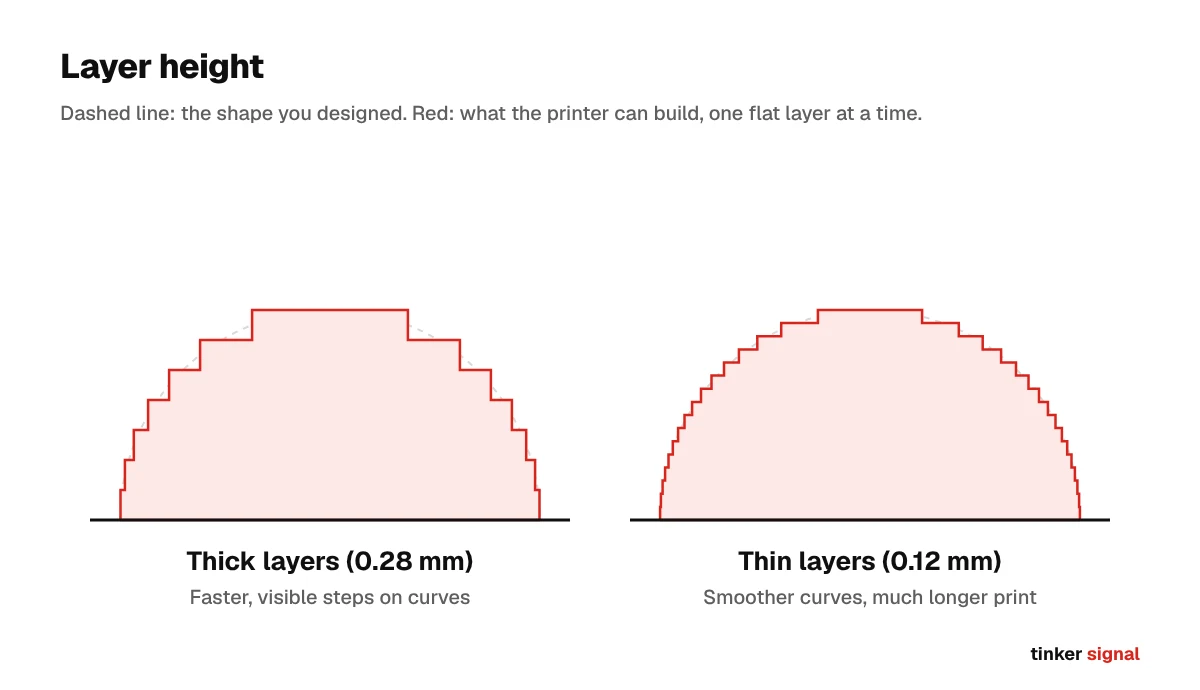
How thick each layer is. Thinner layers make curved and sloped surfaces smoother and hide layer lines, but every halving of layer height roughly doubles print time.
- Typical: 0.2 mm for everyday prints, 0.08–0.12 mm for fine detail, 0.24–0.28 mm for fast drafts. Keep it below about 75% of your nozzle size (0.3 mm on a 0.4 mm nozzle).
- When to change it: Go thinner for figures and display pieces, thicker for big functional parts where looks don’t matter.
First layer height
A separate height just for the first layer. A slightly thicker first layer is more forgiving of a bed that isn’t perfectly level.
- Typical: 0.2 mm on most printers.
- When to change it: Leave it alone unless your printer maker recommends otherwise.
Line width
How wide each line of plastic is. Lines are usually a little wider than the nozzle, which helps them press together.
- Typical: About 0.42–0.45 mm on a 0.4 mm nozzle, often a bit wider (around 0.5 mm) for the first layer.
- When to change it: Wider lines print faster and stronger; narrower lines capture finer detail. Most people never change this.
Adaptive (variable) layer height
Lets the slicer use thinner layers only where the shape curves and thicker layers on straight sections, saving time without losing smoothness.
- Typical: Off by default.
- When to change it: Turn it on for models with gentle curves, like figures and domes.
Seam position
Every wall loop has to start and stop somewhere, which leaves a small mark called the seam. This setting chooses where those marks go.
- Typical: Aligned (stacks seams into one line), nearest, back/rear (hides it at the back of the model) or random (scatters it, which looks rougher but has no visible line).
- When to change it: Use back or aligned seams hidden in a corner for display pieces. Random seams work well on round objects with no corners to hide them in.
Ironing
After the last top layer, the nozzle passes over the surface again with almost no plastic coming out, melting it smooth.
- Typical: Off by default. When on: top surfaces only, with very low flow (around 10–15%).
- When to change it: Use it for flat tops you want glossy, like signs, coasters and lids. It adds time and does nothing for curved tops.
Strength settings
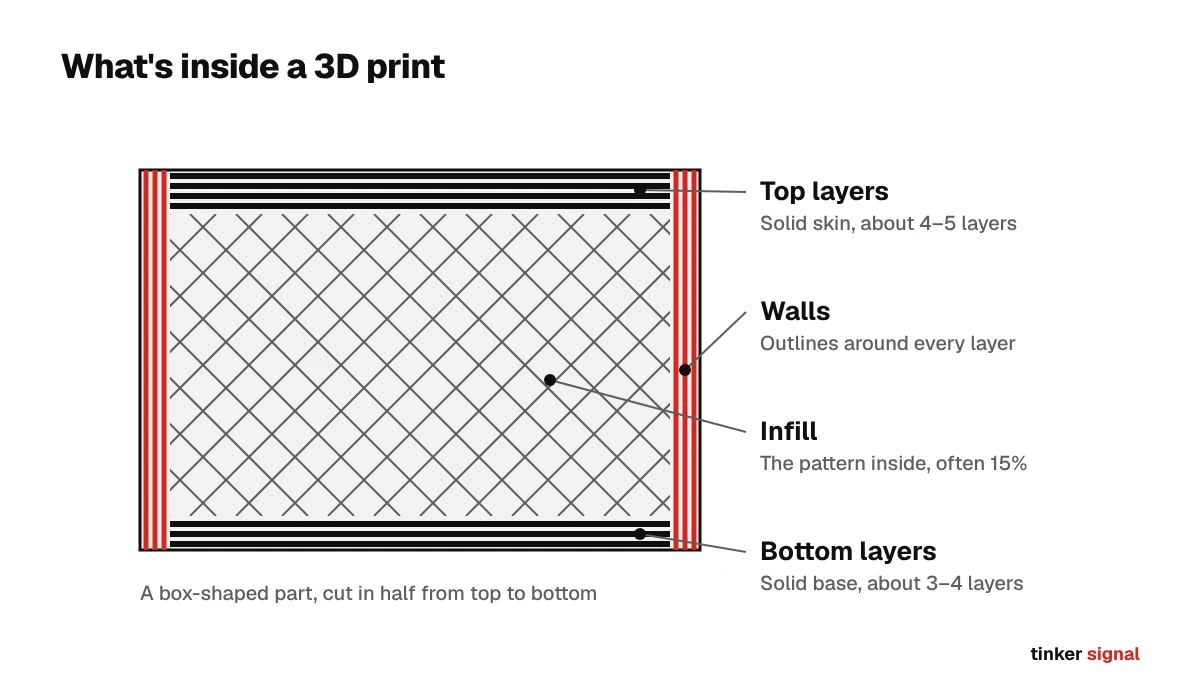
For most parts, walls matter more than infill. Adding one or two walls usually makes a part stronger than doubling the infill, and costs less time.
Walls (wall loops, perimeters)
The number of outlines printed around the edge of every layer.
- Typical: 2 walls for decorative prints, 3–4 for functional parts, 5 or more for parts that get screwed, clamped or hit.
- When to change it: Add walls before you add infill when you need strength. Screw holes and threads especially benefit from extra walls.
Top and bottom layers
How many solid layers make up the top and bottom surfaces.
- Typical: Enough to reach roughly 0.8–1 mm of solid plastic: about 4–5 top layers and 3–4 bottom layers at a 0.2 mm layer height.
- When to change it: Add top layers if you can see the infill pattern showing through (called pillowing). Thinner layer heights need more layers to reach the same thickness.
Infill density
How solid the inside of the part is, as a percentage.
- Typical: 15% for most prints, 20–40% for functional parts, 100% only when you really need a solid part.
- When to change it: Go up for parts that carry weight; go down (or use lightning infill) for display models. Above about 40%, extra infill adds time and filament faster than it adds strength.
Infill pattern
The shape of the inside structure.
- Typical: Grid or cubic are good all-rounders. Gyroid is strong in every direction and looks great in see-through filament. Lightning is the fastest, only supporting the top surface, and is meant for display pieces. Honeycomb is strong but slow.
- When to change it: Use gyroid or cubic for functional parts, lightning for figures and props.
Wall generator (Arachne or Classic)
How the slicer fills thin areas. Arachne varies the line width to fill tiny gaps neatly; Classic keeps every line the same width.
- Typical: PrusaSlicer and OrcaSlicer default to Arachne, Cura always uses it, and Bambu Studio’s own printer profiles still use Classic.
- When to change it: In Bambu Studio, OrcaSlicer and PrusaSlicer you can switch between them if a specific model prints better one way. Most people never need to.
Speed and acceleration
Print speed
How fast the nozzle moves while printing. Most slicers let you set different speeds for outer walls, inner walls, infill, top surfaces and the first layer.
- Typical: On modern Core XY printers (Bambu, Creality K series, Elegoo Centauri), around 200–300 mm/s for infill and inner walls, slower for outer walls. Older bed-slingers are often happiest around 50–100 mm/s.
- When to change it: Slow the outer wall down for better-looking prints; slow everything down if you see ringing (ripples next to corners) or layers shifting.
First layer speed
A much slower speed just for the first layer, so it sticks properly.
- Typical: About 30–50 mm/s.
- When to change it: Slow it further if the first layer won’t stick.
Acceleration
How quickly the printer speeds up and slows down. On short moves the printer rarely reaches top speed, so acceleration often matters more than the speed setting itself.
- Typical: Several thousand mm/s² on modern Core XY printers; roughly 500–1,500 mm/s² on older bed-slingers.
- When to change it: Lower it if you see ringing or shaking, especially on tall or heavy prints on a bed-slinger.
Max volumetric speed
The most plastic the hotend (the heated part that melts the filament) can melt per second, measured in cubic millimeters per second. It caps every other speed: if your speed and line size would need more plastic than this, the slicer slows down automatically.
- Typical: Set in the filament profile. Roughly 12–24 mm³/s for PLA on common hotends; lower for TPU and silk PLA, higher on high-flow hotends.
- When to change it: Lower it if prints look thin, weak or under-extruded at high speed. This is usually the real reason “fast” prints fail.
Temperature
Temperatures come from the filament, not from preference. Start with the range printed on the spool or in the filament maker’s profile. Our filament guide lists typical temperatures for every common material.
Nozzle temperature
How hot the hotend runs.
- Typical: About 200–220°C for PLA, 230–250°C for PETG, 240–270°C for ABS and ASA.
- When to change it: Go a little hotter for better layer bonding and faster printing; a little cooler to reduce stringing and improve fine detail. Change it in 5°C steps.
Bed temperature
How hot the build plate is, which helps the first layer stick.
- Typical: About 55–65°C for PLA, 70–85°C for PETG, 90–110°C for ABS and ASA.
- When to change it: Raise it slightly if prints lift at the corners; lower it if the bottom of PLA parts looks squished out (elephant’s foot).
Chamber temperature
On printers with a heated chamber, how warm the air inside the enclosure is kept.
- Typical: Off or open for PLA (too much heat can cause clogs), warm for ABS, ASA, nylon and PC.
- When to change it: Follow the filament profile; keep the door or lid open for PLA on enclosed printers if the printer maker recommends it.
Cooling
Part cooling fan
The fan blowing on the plastic right after it leaves the nozzle. More cooling gives sharper overhangs and bridges; less cooling gives stronger layer bonding.
- Typical: 100% for PLA, around 30–60% for PETG, 0–30% for ABS and ASA. The first few layers usually run with the fan off.
- When to change it: Turn it up for overhangs and bridges; turn it down if ABS or ASA parts crack between layers.
Minimum layer time
Makes the printer slow down on small layers so each one has time to cool before the next is added.
- Typical: Around 5–10 seconds.
- When to change it: Raise it if the tops of small, tall parts look melted or droopy.
Auxiliary and chamber fans
Extra fans on some printers that blow across the whole bed or move air out of the enclosure.
- Typical: Set by the filament profile.
- When to change it: Mostly leave these to the profile; they’re tuned for each material.
Retraction and travel
Retraction length and speed
When the nozzle travels across an empty gap, the printer pulls the filament back a little so plastic doesn’t ooze out and leave strings.
- Typical: About 0.4–1 mm on direct-drive printers and about 3–6 mm on Bowden printers (where the motor sits away from the hotend), at around 30–45 mm/s.
- When to change it: Increase it a little at a time if you see stringing. Too much retraction can cause clogs and gaps. Wet filament also strings, so dry the filament before adjusting this.
Z hop
Lifts the nozzle slightly during travel moves so it doesn’t drag across the print.
- Typical: Often around 0.2–0.4 mm, sometimes only above the top surface.
- When to change it: Turn it on if the nozzle catches on prints or scratches top surfaces. It can add a little stringing.
Avoid crossing walls
Routes travel moves around the inside of the part instead of straight across open air.
- Typical: On in most profiles.
- When to change it: Leave it on; it reduces stringing at the cost of a little time.
Wipe
Moves the nozzle back over the line it just printed before traveling, wiping off any ooze.
- Typical: On in most profiles.
- When to change it: Leave it on unless you see small blobs at the seam.
Flow and calibration
Flow ratio (extrusion multiplier)
Fine-tunes how much plastic comes out compared with what the slicer expects. Every filament is slightly different.
- Typical: Close to 1.0 (100%), usually within a few percent.
- When to change it: Calibrate it with your slicer’s flow test if top surfaces look rough or gappy (too little) or ridged and blobby (too much).
Pressure advance (linear advance)
Molten plastic behaves like a spring: when the printer speeds up, it lags behind, and when it slows down, it keeps oozing. Pressure advance pushes a little extra at the start of a line and eases off before the end, giving sharp corners and even lines.
- Typical: Often around 0.02–0.06 on direct-drive printers and much higher on Bowden printers (this is the Klipper, Bambu and Prusa scale; Marlin’s linear advance “K” value uses a different scale). Many current printers calibrate it automatically; Bambu calls this flow dynamics calibration.
- When to change it: Run your slicer’s calibration if corners bulge or lines are thin at the start and fat at the end. OrcaSlicer and Bambu Studio have calibration prints built in; in PrusaSlicer and Cura it’s usually set in the printer’s firmware or the filament’s start G-code.
Supports
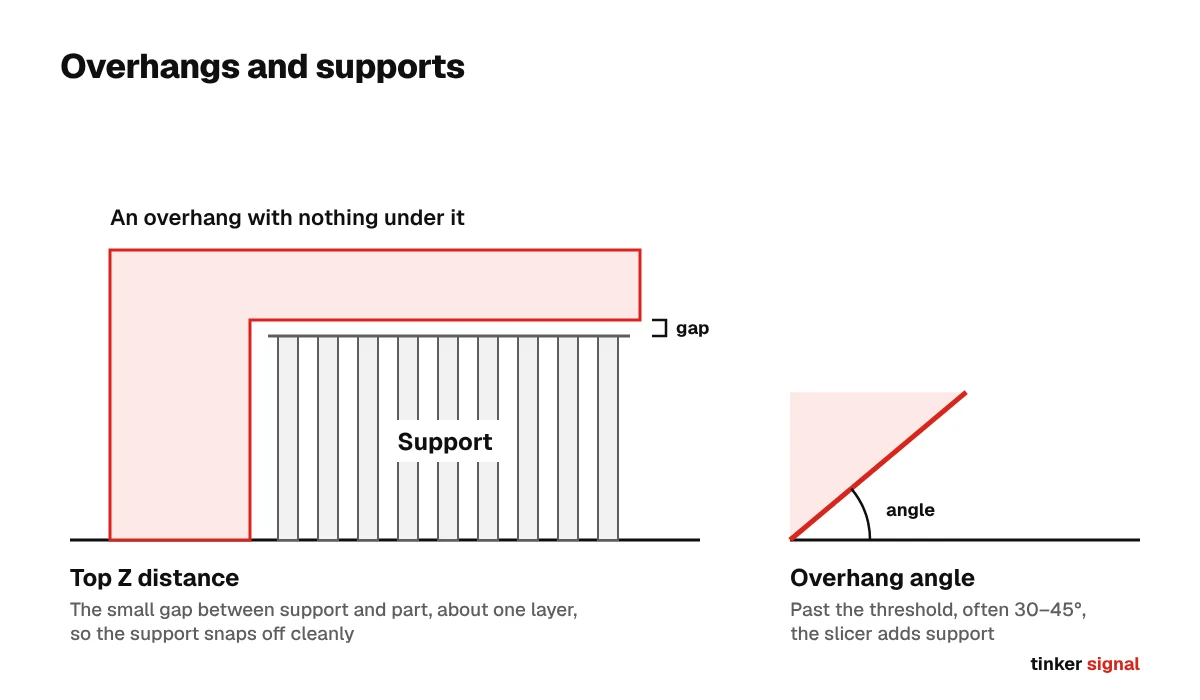
Each layer has to rest on the one below. Overhangs up to about 45° from vertical usually print fine on their own; anything flatter, and anything floating in mid-air, needs supports underneath.
Support type
Normal (or grid) supports are straight columns under every overhang. Tree (or organic) supports grow branches from the bed up to just the spots that need holding.
- Typical: Tree supports for figures and curved models; normal supports for big flat overhangs.
- When to change it: Tree supports use less plastic and leave fewer marks; normal supports are sturdier for large flat areas.
Overhang threshold angle
How steep an overhang has to be before the slicer adds support.
- Typical: Around 30–45°, but slicers measure this angle differently (some from horizontal, some from vertical), so check the preview.
- When to change it: Change it if the slicer adds supports where you don’t need them, or misses spots that sag.
Support on build plate only
Only allows supports that start on the bed, never on top of the model itself.
- Typical: Off by default.
- When to change it: Turn it on to avoid support marks on the model’s surface, as long as nothing important is left unsupported.
Top Z distance (support gap)
The small gap between the top of the support and the part, so they don’t fuse together.
- Typical: About one layer height (0.2 mm at a 0.2 mm layer height).
- When to change it: Increase it if supports are hard to remove; decrease it if the underside of the part looks droopy.
Support interface layers
A denser layer on top of the support, giving the part a smoother surface to rest on.
- Typical: 2–3 layers.
- When to change it: Add layers for a cleaner underside. Using a dedicated support material for just the interface, if your printer has multiple filaments, makes supports peel off far more easily.
Support painting and blockers
Lets you paint exactly where supports should and shouldn’t go, or block them from areas.
- Typical: Off unless you use it.
- When to change it: Use it when automatic supports put plastic somewhere hard to clean, like inside a hole.
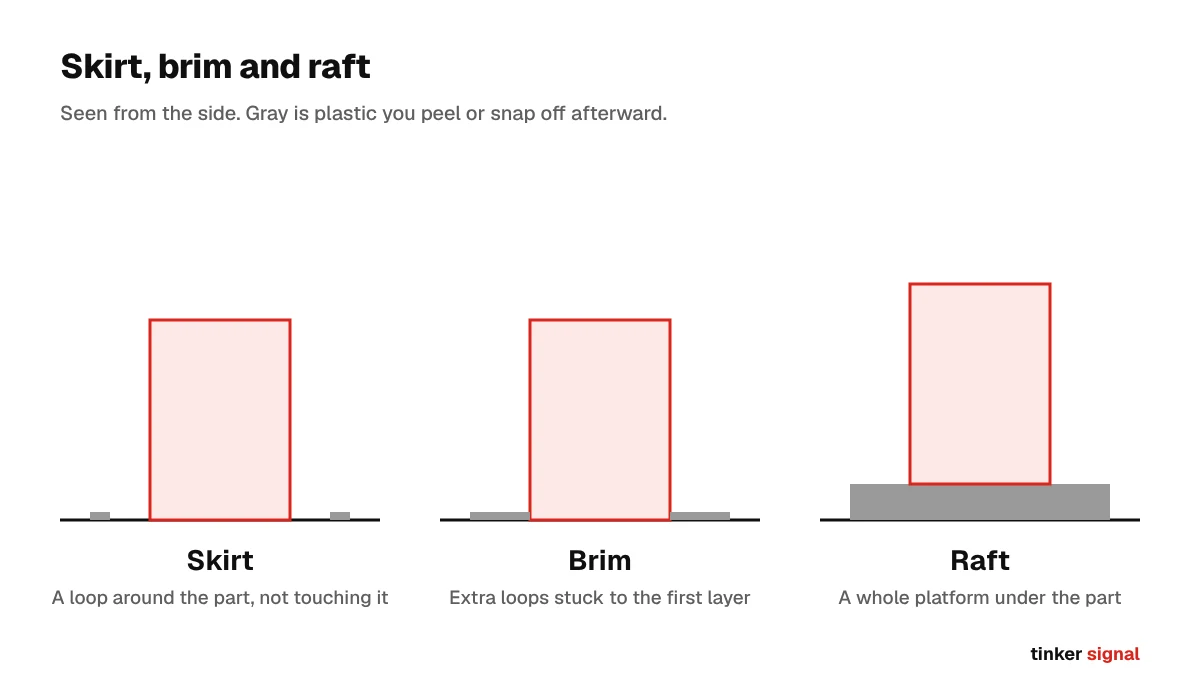
Bed adhesion
Skirt
A loop drawn around the part, but not touching it, before the print starts. It primes the nozzle and shows whether the first layer is going down well.
- Typical: Off by default in Bambu Studio, since Bambu printers prime the nozzle themselves; often one loop in PrusaSlicer and Cura.
- When to change it: It’s optional. It’s handy for checking that the first layer is going down well before the part starts.
Brim
Extra loops attached to the outside of the first layer, like the brim of a hat. More surface area means corners are less likely to lift (warp).
- Typical: Usually off, or automatic. When used, about 3–8 mm wide.
- When to change it: Use it for tall thin parts, small contact areas, and warp-prone materials like ABS, ASA and nylon. It snaps off afterward.
Raft
A thick, disposable platform printed under the whole part.
- Typical: Off.
- When to change it: Rarely needed on modern printers with good beds; it uses a lot of plastic and leaves a rough bottom surface. Try a brim first.
Multicolor and multi-material
Prime tower (wipe tower)
A small tower printed next to the part. After every filament change, the nozzle cleans out the old color into the tower so it doesn’t end up in your print.
- Typical: On automatically when you use more than one filament on a single-nozzle printer.
- When to change it: Leave it on. Toolchangers and multi-nozzle printers need much less purging.
Flushing volumes
How much plastic gets purged when switching from one color to another. Going from dark to light needs more than light to dark.
- Typical: Calculated automatically from the two colors.
- When to change it: Lower it carefully to waste less filament; raise it if you see color bleeding into the next section.
Flush into infill or objects
Purges old color into the inside of the part, or into a separate throwaway object, instead of the prime tower.
- Typical: Off by default.
- When to change it: Turn it on to cut waste on large multicolor prints, as long as the inside color doesn’t matter.
Special modes
Spiral vase mode
Prints the model as one continuous spiral with a single wall and no top, rising smoothly instead of layer by layer. There’s no seam, and it’s very fast.
- Typical: Off.
- When to change it: Use it for vases, lampshades and pen cups. Single-wall prints can leak, and 3D-printed parts aren’t food-safe, so don’t drink from them.
Fuzzy skin
Adds tiny random wiggles to the outer wall, giving a textured, matte surface that hides layer lines.
- Typical: Off.
- When to change it: Use it for grips, handles and props where texture looks good.
Which setting fixes my problem?
Most print problems trace back to a small number of settings. Change one at a time and reprint a small test, so you know what made the difference.
| Problem | Try first | Then |
|---|---|---|
| Stringing (thin hairs between parts) | Dry the filament | Lower nozzle temperature 5°C, increase retraction slightly |
| First layer won’t stick | Clean the bed with soap and water | Slow the first layer, raise bed temperature, add a brim |
| Corners lifting (warping) | Add a brim | Raise bed temperature; use an enclosure for ABS and ASA |
| Rough or gappy top surfaces | Add top layers | Calibrate flow ratio; turn on ironing for flat tops |
| Droopy overhangs | Increase part cooling | Add supports or lower the overhang threshold |
| Weak parts that snap | Add walls | Raise nozzle temperature for better layer bonding; use more infill |
| Ripples next to corners (ringing) | Lower outer wall speed | Lower acceleration |
| Thin or under-extruded lines at speed | Lower max volumetric speed | Raise nozzle temperature slightly |
| Visible seam line | Change seam position to back or aligned in a corner | Calibrate pressure advance |
| Supports hard to remove | Increase top Z distance | Use tree supports or a support interface material |
Want to know which filament to load before you start changing settings? See every 3D printing filament explained. Choosing a printer? Compare the major brands in our 3D printer brands guide.